Best Video Editing Software for Beginners :- Picking your first video editor can feel harder than actually editing a video. Every app claims to be “the easiest,” half of them want a subscription before you’ve even trimmed a clip, and a few free downloads come bundled with more than you asked for.
This guide cuts through that — a straightforward, honest look at the tools actually worth a beginner’s time in 2026, what they cost, and where each one falls short.
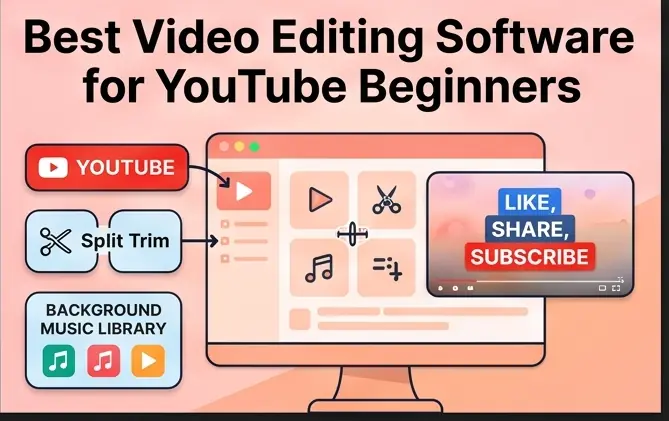
What Actually Matters for a Beginner Editor
Before comparing apps, it helps to know what you’re really evaluating:
- Learning curve – Can you make a decent 60-second video in your first sitting, or does it take a weekend of tutorials?
- Output quality – Some “easy” editors cap your export resolution or slap a watermark on unless you pay.
- Platform support – Windows, Mac, and mobile options vary a lot between tools.
- Safety – Free software is a common vector for bundled adware or shady installers. Always download from the official site, never a third-party mirror.
- Real cost – “Free” sometimes means free-with-watermark, free-trial-then-paywall, or genuinely free forever. Worth knowing which before you commit hours to a project.
Free Video Editing Software for Beginners
CapCut The most widely used free option right now, and for good reason — it runs on desktop and mobile, syncs projects between them, and its auto-captions and templates make short-form content genuinely fast to produce. The trade-off: some advanced effects and stock assets sit behind a Pro subscription, and as a ByteDance product, the privacy-conscious may want to check its data practices before using it for sensitive footage.
iMovie If you’re on a Mac or iPhone, iMovie is hard to beat for a true beginner. It’s pre-installed, free, and you can be editing within minutes with no manual required. The catch is that it’s Apple-only and intentionally limited — you’ll outgrow it fast once you want more than basic trims, transitions, and titles.
DaVinci Resolve (Free tier) This is the outlier on the list: professional-grade software, including real color grading and audio tools, available at no cost. The interface is more intimidating than CapCut or iMovie, so expect a real learning curve. But if you’re serious about video editing as a long-term skill rather than a one-off task, this is the free tool least likely to make you switch software later.
Shotcut and OpenShot Both are open-source, cross-platform (Windows, Mac, Linux), and genuinely free with no watermarks or paywalls. They’re reasonably beginner-friendly but noticeably less polished than the options above — expect occasional lag on less powerful machines, and a smaller library of built-in effects and templates.
Paid Video Editing Software for Beginners
Wondershare Filmora — around $50–$80/year Filmora is built as the step up from CapCut or iMovie: a clean interface, a large library of templates and effects, and AI tools for tasks like background removal and auto-reframing. It’s not as powerful as professional software, but it doesn’t try to be — it’s aimed squarely at hobbyists and content creators who want more polish without a steep learning curve.
CyberLink PowerDirector — around $70–$100/year Known for being one of the faster editors to render in, with a solid set of beginner-friendly AI features (motion tracking, sky replacement, voice enhancement). A common complaint is that the Mac and Windows versions aren’t quite feature-identical, so check compatibility before buying if you’re on a Mac.
Adobe Premiere Elements — one-time purchase, typically $80–$100 Unlike most Adobe products, this isn’t a subscription — you buy it once. It offers three interface modes depending on your comfort level, which is a genuinely useful way to grow into the software rather than being overwhelmed on day one. It’s less actively updated than Adobe’s subscription tools, so don’t expect cutting-edge AI features.
Movavi Video Editor — around $40–$60/year Consistently praised for being one of the most approachable paid editors — drag-and-drop simplicity with enough real editing tools underneath to handle more than basic cuts. It won’t compete with Filmora or PowerDirector on advanced features, but for someone who just wants things to work without a learning curve, it’s a solid, low-drama choice.
Free vs. Paid: What You’re Actually Paying For
The honest answer is that free tools like CapCut and DaVinci Resolve can produce excellent results — the limiting factor is usually your skill and patience, not the software. What paid tools add is convenience: bigger template libraries, faster customer support, more polished AI features, and fewer workarounds for things like watermark removal or export limits.
If you’re not sure yet whether video editing is something you’ll stick with, start free. CapCut or DaVinci Resolve will take you further than most beginners expect before you hit a real ceiling.
A Quick Word on Safety
A few habits worth keeping regardless of which editor you pick:
- Download only from the official website or verified app store listing — never a “free download” link from a random blog or forum.
- Be cautious of any installer that asks you to disable your antivirus or install extra “recommended” software.
- Check an app’s data and privacy policy before uploading personal or sensitive footage, especially with free mobile apps.
- Keep the software updated — editors handle a lot of file types, and outdated versions can have unpatched vulnerabilities.
Bottom Line
- Total beginner, want results today: iMovie (Mac) or CapCut (everyone else)
- Want to learn a skill you won’t outgrow: DaVinci Resolve (free)
- Want a paid tool with training wheels off but no steep learning curve: Filmora
- On a budget but done with free-tier limitations: Movavi
There’s no single “best” video editor for every beginner — it depends on your platform, your patience for a learning curve, and whether you’d rather pay for convenience or trade time for a free tool. Try one, make a short project, and see how it feels before committing to a subscription.